Best AI Photo Editor for Christmas Card Photos in 2026
Summary
The best AI photo editor for Christmas card photos depends on how much control you want. Adobe Photoshop leads for fixing a photo you cannot retake, Canva wins for taking a photo straight into a finished card, Luminar Neo avoids a subscription, and Topaz Photo rescues soft images before printing. Fotor and Photoroom cover quick free cleanups and cutouts. Prices below were checked in October 2026.
Six AI photo editors compared for one job: getting a family photo clean and print-ready for a Christmas card, with prices checked in October 2026.
At-a-glance
| Adobe Photoshop | Canva | Luminar Neo | Topaz Photo AI | Fotor | Photoroom | |
|---|---|---|---|---|---|---|
| Price (checked October 2026) | US$22.99/mo on the annual plan, billed monthly | Free with up to 20 AI uses, Pro US$144/year | One-time US$129 (desktop) or US$159 (desktop and mobile), AI tools included for 365 days | US$199/year, or US$39 month to month | Free with limited credits, Pro US$47.99/year | Pro US$7.50/mo billed yearly, US$12.99 month to month |
| AI fixes for a family photo | Generative Remove and Generative Fill for photobombs, stray cars, a bare patch of wall | Magic Edit and a background remover, handled inside the card layout itself | GenErase, GenSwap, GenExpand, plus portrait smoothing and relighting | Denoise, sharpen and Recover Faces for dim indoor shots | Background remover, photo enhancer and a chat-to-edit prompt box | Background removal and scene swaps, tuned for product shots rather than faces |
| Help reaching print resolution | Generative Upscale, plus full control of canvas size and DPI | Exports for print, but no true detail-restoring upscaler | Upscaling exists, though it is not the headline feature | The strongest upscaler of the six, running locally on your machine | Enhancer sharpens, but HD export sits behind Pro | Exports at marketplace sizes, so check the pixel count before ordering |
| Learning curve | Steep, with layers and masks to learn first | Gentle, since the whole thing is drag and drop | Moderate, mostly one-click sliders and presets | Easy, since Autopilot picks settings for you | Easy, and all of it runs in a browser | Easy, but aimed at sellers rather than families |
| Where it runs and how you pay | Desktop, web and mobile, subscription only | Browser, desktop and mobile, free tier available | Mac and Windows desktop plus mobile, perpetual licence | Mac and Windows desktop, subscription only | Browser and mobile, free tier available | Browser and mobile, subscription after a free start |
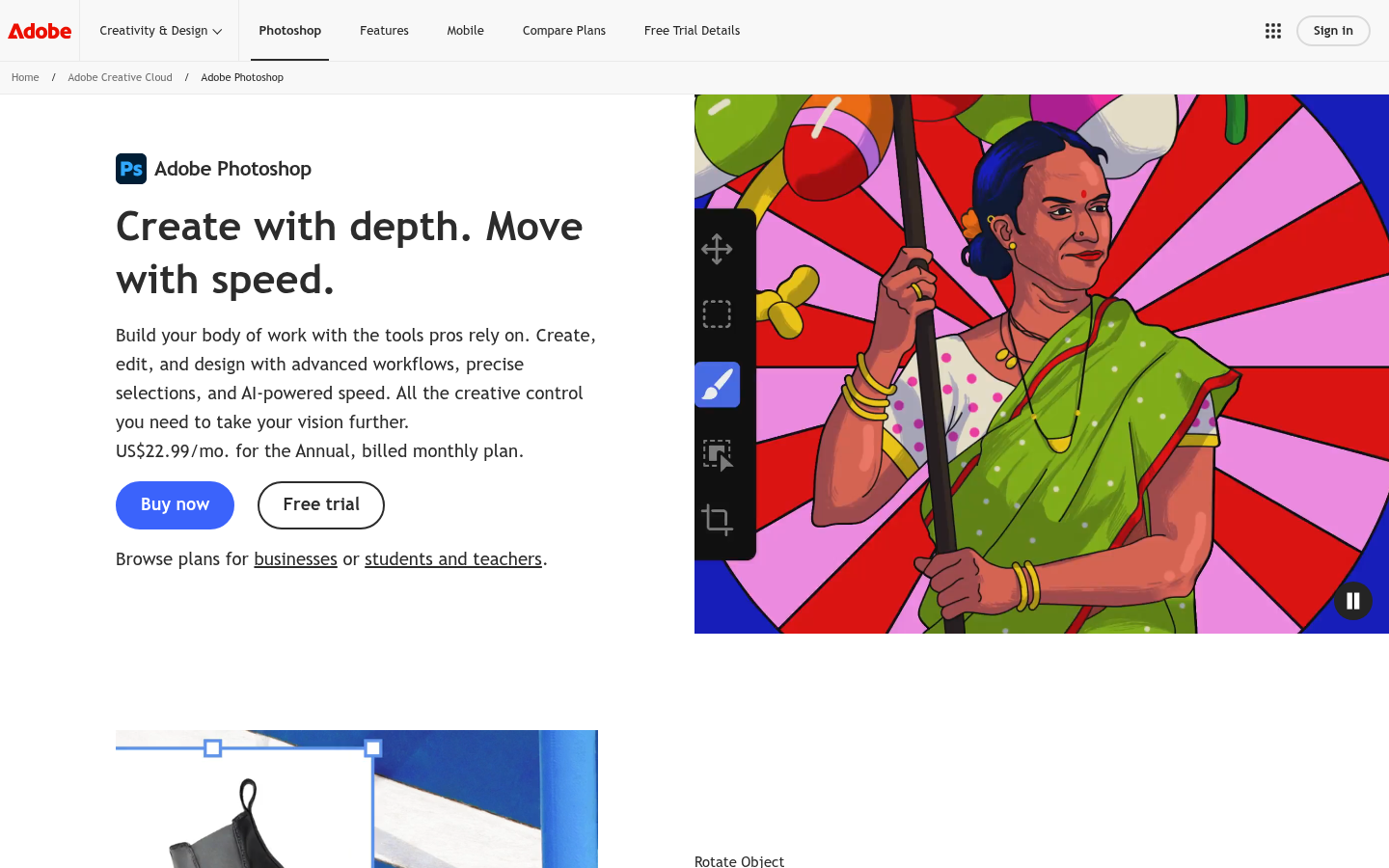
Adobe Photoshop
- Generative Remove fills in the space behind a photobomber or a stray trash can, which beats clone-stamping it out by hand.
- Generative Expand rebuilds missing edges, which helps when a portrait crop is too tight for a card.
- Layers and masks give pixel-level control, so you decide exactly how much retouching is too much.
- It costs US$22.99 a month, which is hard to justify for one December project.
- The learning curve is real; a beginner can burn an evening before the first clean export.
The strongest editor here, and more tool than most families need.

Canva
- Photo editing and card layout live in the same workspace, so there is no export and re-import step.
- The free plan includes some Magic Studio AI uses, enough to try a background removal or a quick edit.
- A 4.7 out of 5 average on G2 across more than 7,700 reviews points to a tool people actually keep using.
- Its AI editing is shallower than Photoshop's; stubborn fixes still need a different tool.
- Heavier AI use depends on Pro or an add-on, so the free tier runs out quickly in a busy week.
The easiest route from a raw photo to a printable card.
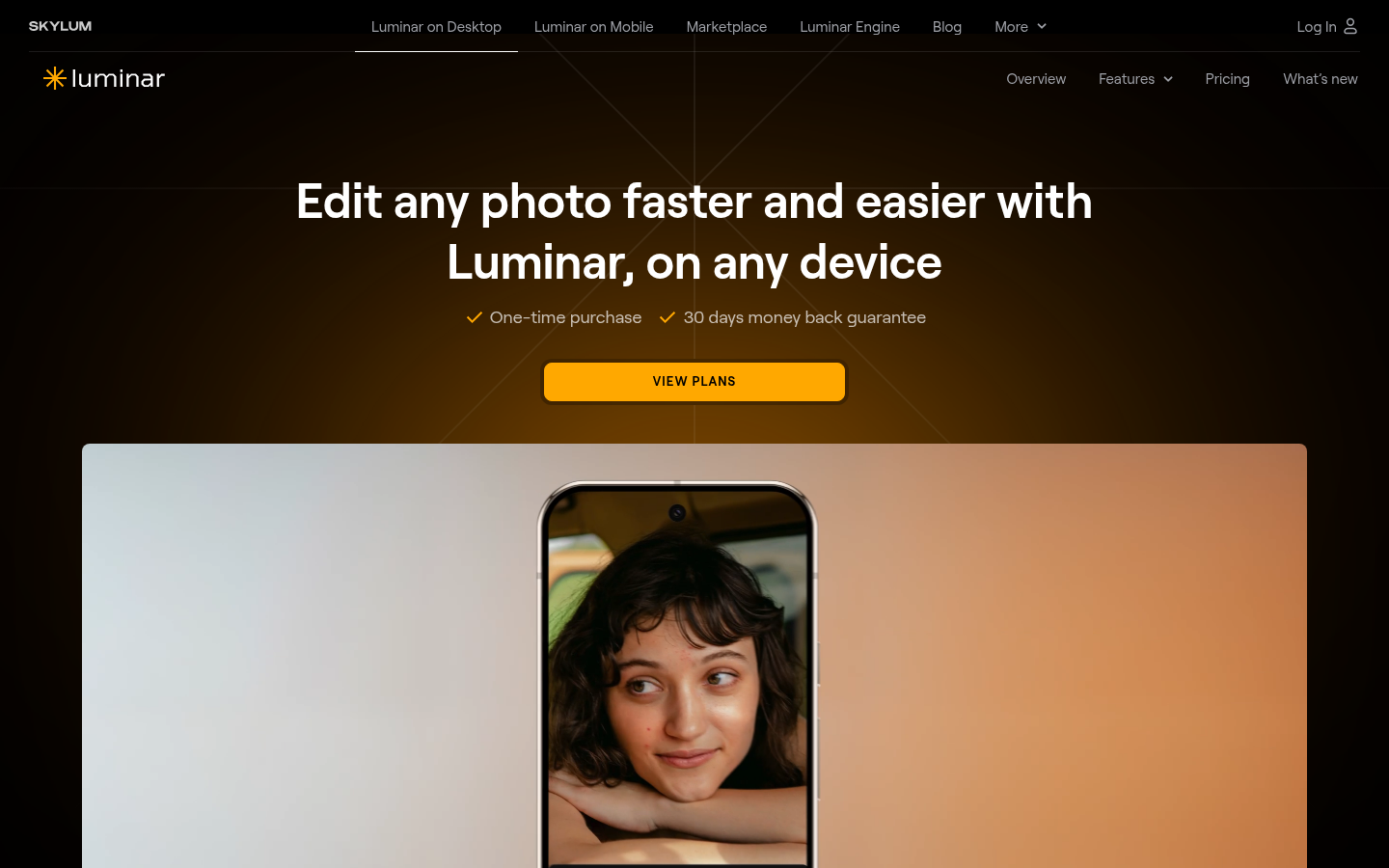
Luminar Neo
- Sliders for skin, light and background blur are built to polish a portrait in minutes with no layer work.
- GenErase, GenSwap and GenExpand cover most of the removal and fill jobs a card photo needs.
- Perpetual licence pricing means a one-off payment for the app itself, which suits a seasonal hobby.
- The AI tools are unlimited for 365 days, then renewable, so 'pay once' only covers the app.
- G2 users flag slow performance on older machines, and only 113 reviews back up the 4.4 average.
A good middle path if you dislike subscriptions.
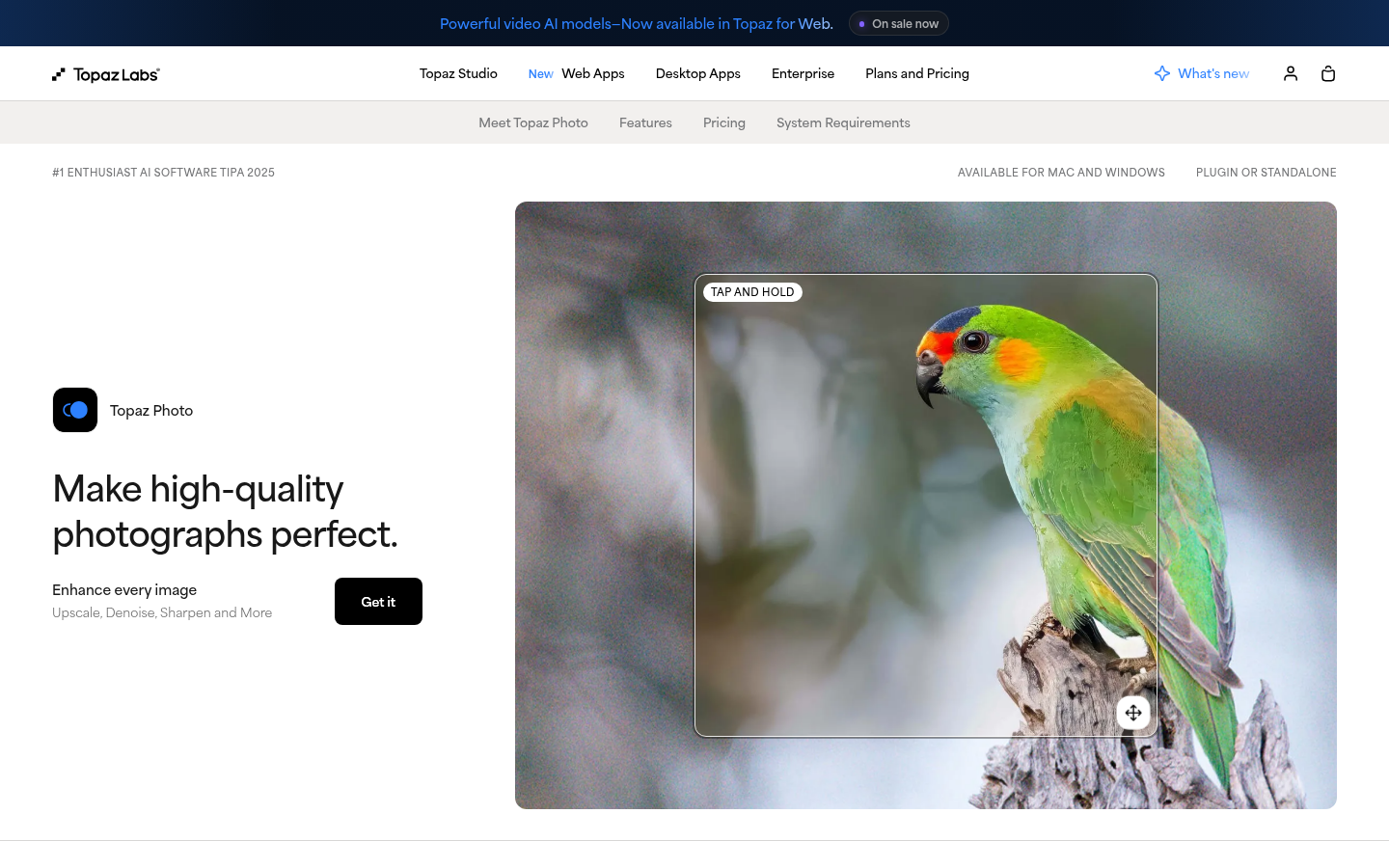
Topaz Photo AI
- Its denoise and sharpen models are trained for noisy, low-light photos, which describes most indoor family shots.
- Its upscaler is designed to add real detail, which matters when a crop has to fill a 5x7 card at print size.
- Rendering runs locally and unlimited, so a batch of 40 family photos does not eat a credit allowance.
- It is subscription only at US$199 a year, expensive for a tool that does one job.
- It has no compositing or background swap, so it fixes quality but never changes the scene.
The one to add when the photo is good but the pixels are not.
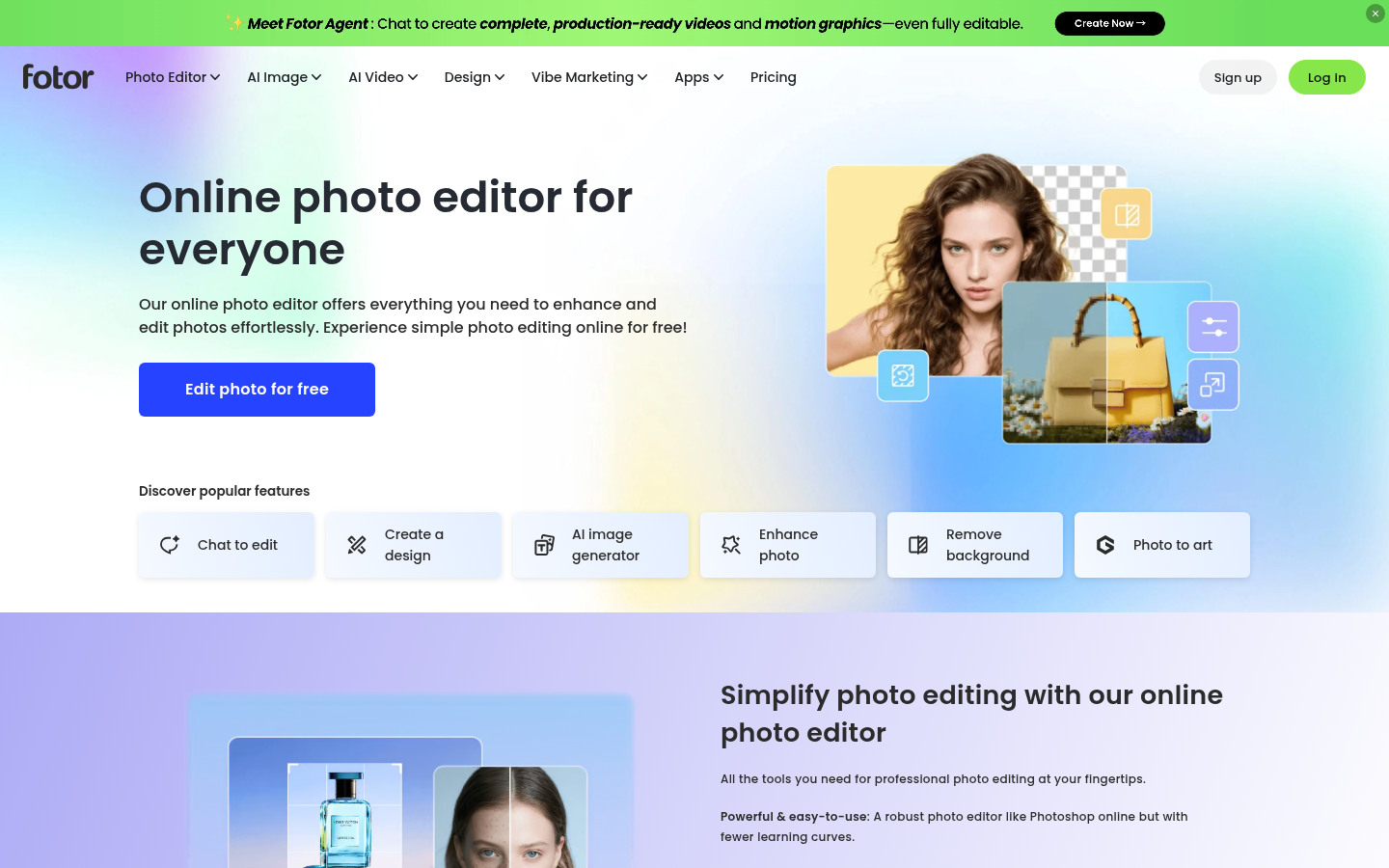
Fotor
- Background removal and photo enhancement run in a browser, with nothing to install.
- Pro is US$47.99 a year, the cheapest paid plan on this list for watermark-free HD export.
- The chat-to-edit box lets you ask for a change in plain words instead of hunting through menus.
- AI features draw from a monthly credit pool, so heavy use needs Pro+ at US$69.99 a year.
- Fewer fine controls than Photoshop or Luminar, so skin retouching can look overdone if you accept the defaults.
Fine for a fast cleanup, less so for a hero portrait.
Photoroom
- Background removal is its core feature, and the company says more than 80 million people use it.
- Batch edit applies the same change to a whole set of photos at once, useful for a collage-style card.
- Pro starts at US$7.50 a month billed yearly, with 8,000 AI credits.
- It is built for e-commerce product shots, so portrait retouching is thin.
- The headline plans are priced for sellers, and only 20 G2 reviews exist, too few for a reliable rating.
Useful for cutouts, but a specialist rather than an all-rounder.
Verdict
Adobe Photoshop is the best AI photo editor for Christmas card photos if you want control, because Generative Remove fixes the one flaw you cannot reshoot. Canva is the better pick for most families, since editing and card layout share one workspace. Luminar Neo suits anyone avoiding a subscription, and Topaz Photo is the add-on that rescues soft, grainy shots before the print run.
How we tested
This roundup is desk research, not a lab test. We did not shoot the same family photo through every tool. Instead we read each product's own pricing and feature pages in October 2026, recorded the plan prices exactly as listed, and compared the AI features against what a Christmas card photo needs: removing a distraction, repairing faces and light, reaching print resolution, and keeping the cost sensible for a one-season project. Customer sentiment comes from G2 aggregates where they exist: Photoshop 4.6 out of 5 across 13,424 reviews, Canva 4.7 across 7,724, Luminar Neo 4.4 across 113. Topaz Photo AI and Photoroom have too few G2 reviews to quote a rating, and Fotor has no listing we could read. The scores out of 5 are our editorial judgement for this one use case, not a measure of overall quality. Prices change, so confirm them on the product's site before you buy.
Adobe Photoshop is the best AI photo editor for Christmas card photos when you need real control, because Generative Remove fixes the flaw you cannot reshoot, such as a stranger in the background or a stray cable. Canva is the better choice for most families, since photo edits and the card layout live in one workspace. Luminar Neo suits anyone who dislikes subscriptions, and Topaz Photo is the add-on for soft, grainy shots.
Here's the thing about a Christmas card photo: it has to survive two trips. It gets edited on a screen, then printed at 300gsm, where every flaw is the size of your thumb. That changes what "best" means. A tool that looks brilliant on a phone can fall apart once the file is stretched to a 5x7 card.
What does a Christmas card photo actually need from an editor?
Four jobs cover almost every card photo. Remove something that should not be there, repair faces and light, reach print resolution, and do all of it without a steep learning curve in the first week of November.
The resolution job gets forgotten most. A 5x7 card printed at 300 dpi needs a file of roughly 1,500 by 2,100 pixels. A phone original clears that easily, but a heavy crop, or a photo that went through a messaging app and was compressed on the way, may not. Check the pixel count before you fall in love with a crop.
The retouching job is where AI editors tempt you most. Smooth skin, bigger eyes, a brighter smile. The family that opens the envelope in December wants to recognize you, not an airbrushed cousin. Every tool below can overdo it, so keep sliders low.
Which AI photo editors made the shortlist, and why?
We started from the tools that show up most when people search for an AI photo editor, then kept the six that solve a real card problem. Photoshop, Canva, Luminar Neo and Topaz Photo cover the editing core. Fotor is the free browser option. Photoroom is the specialist for cutouts. We left out pure image generators, since turning a photo into a painted card is a different job we cover elsewhere in our guide to AI image generators.
How do you choose between them?
Start with your budget and your patience, in that order.
If you will edit a single photo this year, pick a tool with a free tier or a one-off price. Canva and Fotor both let you start free, and Luminar Neo charges once for the app. Paying US$22.99 a month for Photoshop to fix one picture is a poor trade, unless you already hold a Creative Cloud plan.
If you edit a lot of photos, Topaz Photo's local, unlimited rendering starts to make sense, since a batch of 40 family photos costs nothing extra to run. If your biggest problem is a messy background, Photoroom or the background remover in Canva is likely to be quicker than working with layers.
If you want one place for everything, Canva is the shortest path. You edit the photo, drop it into a card template and export, without bouncing between apps.
What do users say, and where does the evidence run thin?
User sentiment backs the broad picture. Photoshop sits at 4.6 out of 5 on G2 across 13,424 reviews, praised for editing power and criticized for its learning curve and heavy system demands. Canva holds 4.7 across 7,724 reviews, praised for ease of use and templates, with some reviewers calling its features limited. Luminar Neo averages 4.4 across 113 reviews, with slow performance the common complaint.
For Topaz Photo AI, Photoroom and Fotor, there is not enough review volume on G2 to quote a reliable average, so we have not leaned on one. Treat their scores here as our reading of the feature sets, nothing more.
When should you skip AI editing altogether?
Sometimes the honest answer is to reshoot. If the main subject has closed eyes in every frame, or the photo is badly out of focus, no tool recovers what the camera never captured. Topaz Photo can sharpen mild blur, but it cannot invent a face that was never sharp.
The other case is over-editing. A photo that has been smoothed, relit and swapped onto a new background can read as strange on cardstock, where texture shows. A light touch beats a heavy one. Remove the distraction, fix the exposure, and stop.
If you want to turn the edited photo into a painted illustration rather than a cleaned-up photograph, that is a generative job. Adobe Firefly sits in that category, and it connects to Photoshop if you already use it.
What this looks like in your mailbox
Whichever editor you pick, do the work in this order: remove distractions first, fix light and color second, upscale last, then export at full size and check the corners. Order matters, since upscaling a photo before you clean it only makes the flaws larger.
Pick one tool, give yourself one evening, and order the proof copy early. October is when this becomes a real deadline, not a November panic.